A real lesson · Design & Technology · 3.1.4 Systems Approach

Teach it, and take it, side by side

You’re the teacher: move the board on with the Next slide button. Your teacher view is on the left, and on the right (or below on a phone) is the student’s Chromebook. Use it as they would: change the text, the background or the font, press Listen, and answer. A pretend class answers too.

Teacher’s board
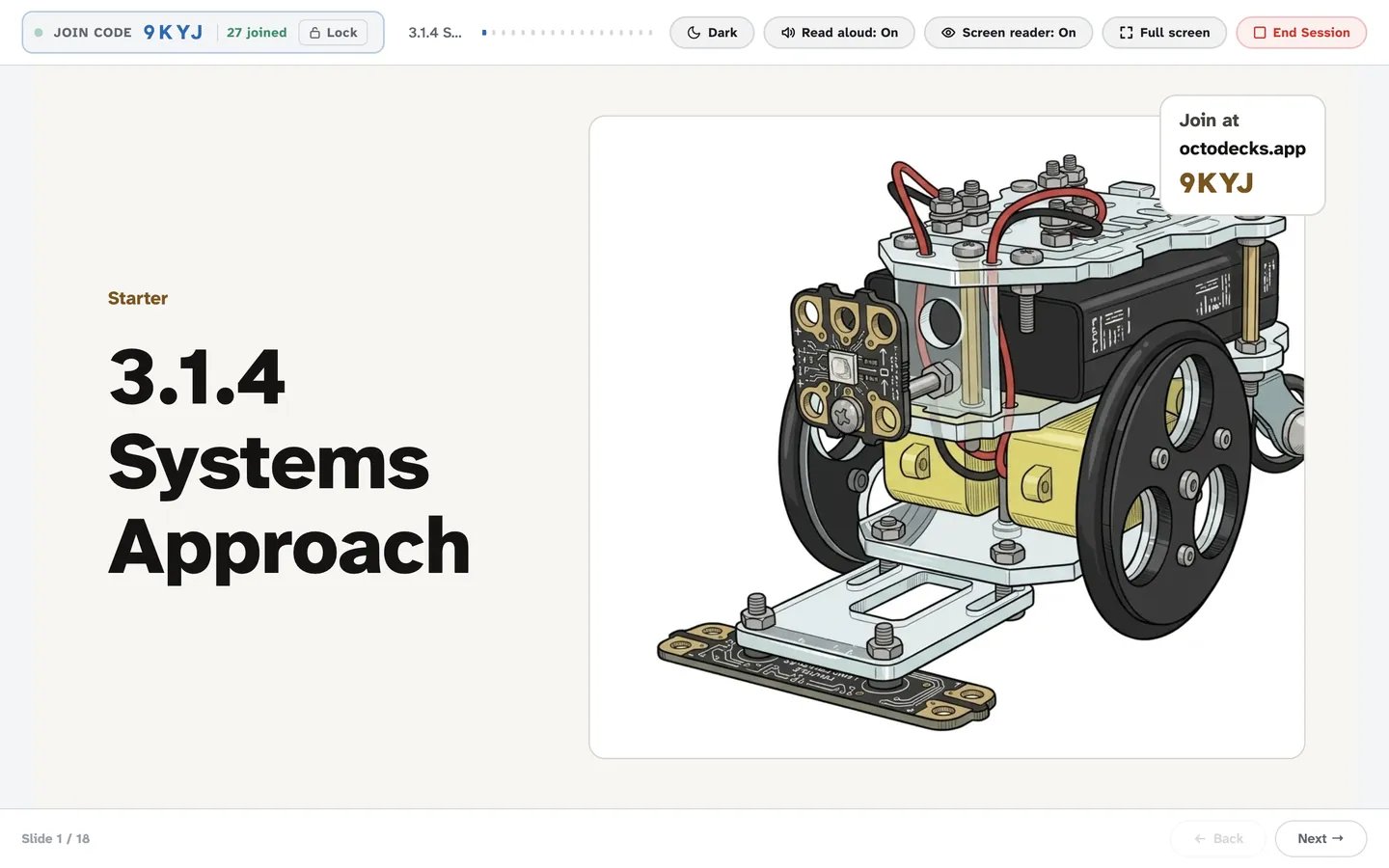
The teacher's board showing slide 1.

A student’s screen · try it: tap and type here

You’re the teacher Loading the lesson…

The worksheet from the same deck

OctoDecks turns the lesson into a printable worksheet: the slides students write on, the key words, and the tasks the teacher marked for the sheet. There’s no second document to keep up to date.
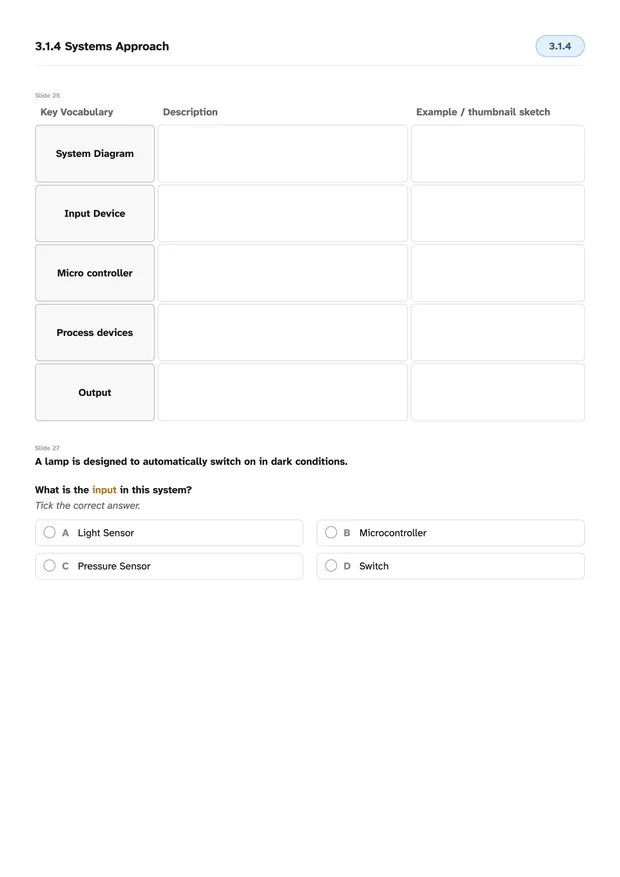
Worksheet page 1: the lesson title, a key vocabulary table with System Diagram, Input Device, Micro controller, Process devices and Output, each with space for a description and a sketch, and the multiple choice question about the lamp that switches on in the dark.
Page 1. Key words from the recap, ready for students to define, and the lesson’s quiz question.
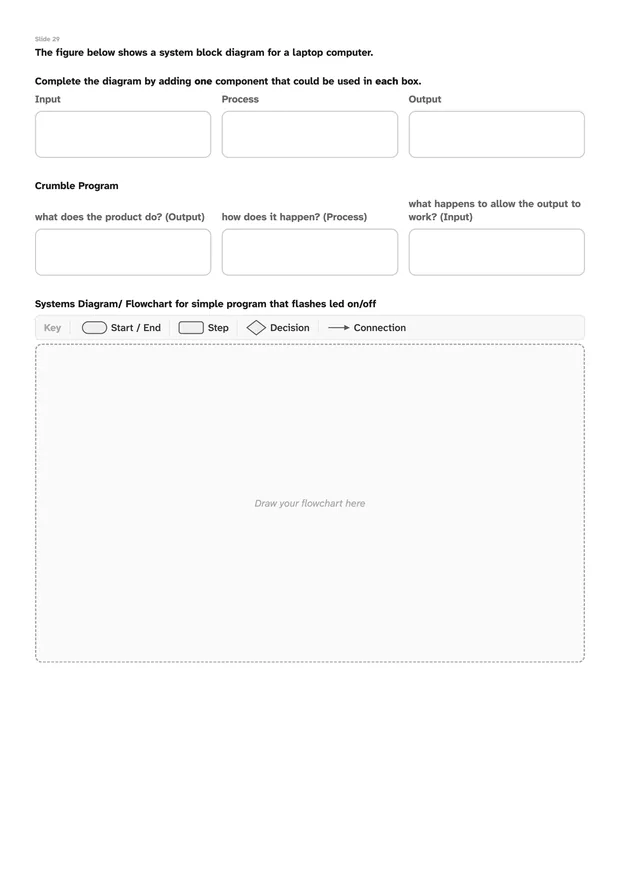
Worksheet page 2: input, process and output boxes for a laptop computer, the same boxes for the Crumble program, and a space to draw a flowchart for a program that flashes an LED, with a key of flowchart shapes.
Page 2. The systems diagrams to complete, and a flowchart to draw.
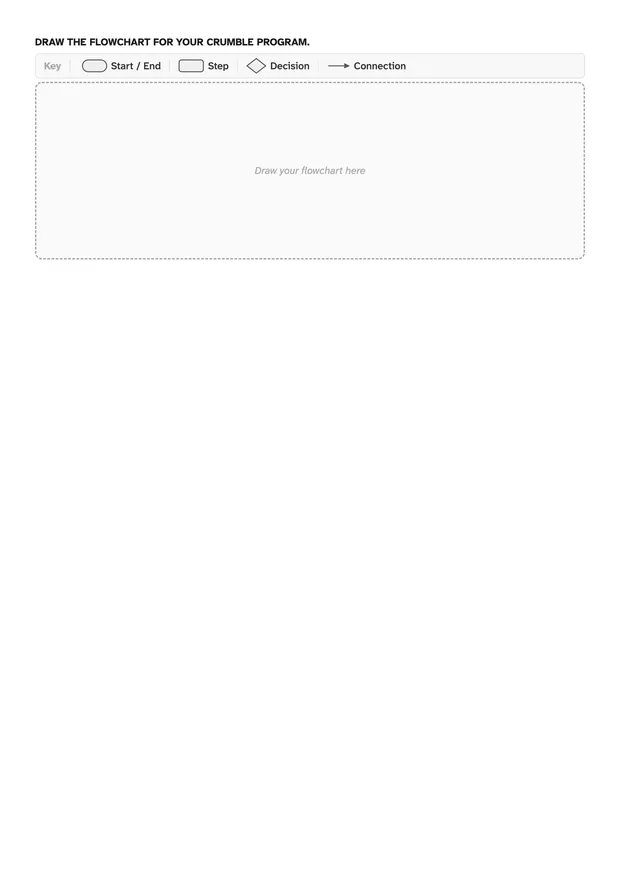
Worksheet page 3: a space to draw the flowchart for the student's own Crumble program, with a key of flowchart shapes.
Page 3. The flowchart for the program each pair writes in the lesson.
Made by a teacher, for a real class. This is Mr Hope’s own lesson, built in OctoDecks and taught with it. The slides, activities and worksheet are what the app produced. The student screen here is a demo copy that runs only in your browser: nothing you type is sent anywhere.